Article
PS5X Installation: Xbox Developer Mode Guide
Install the experimental PS5X/KytyPS5 Xbox build using Developer Mode, Device Portal, dependencies, and an NTFS USB game folder with read access.
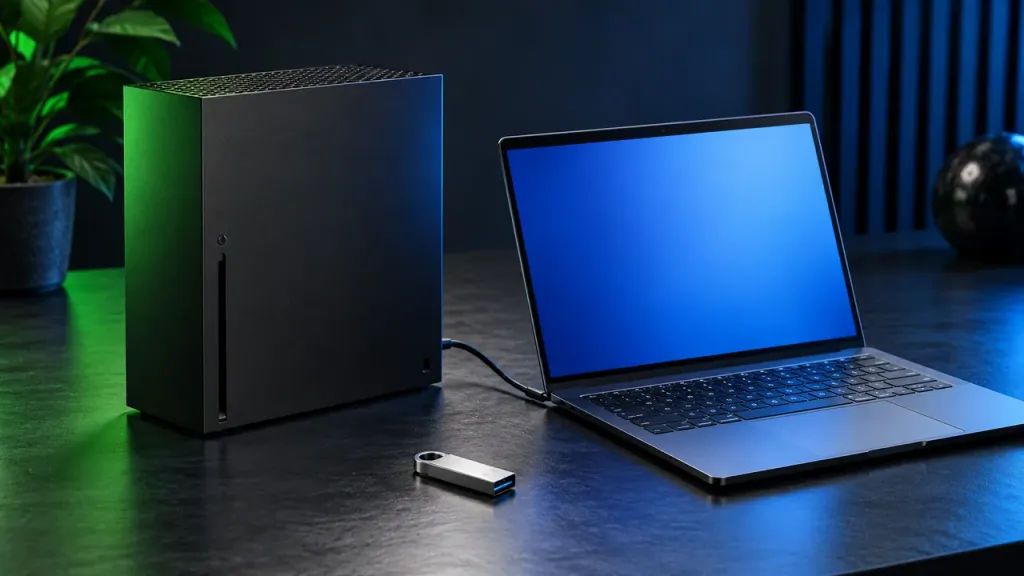
Checked 20 October 2026. Installing PS5X means deploying the experimental KytyPS5 Xbox package in Developer Mode. This guide follows Microsoft’s activation documentation, the developer’s package instructions, and the Xbox app’s folder setup. It is a documentation-based guide; FreeSimulators has not performed a console installation.
Before you start
Prepare a Series X or Series S, a PC for unpacking the release and configuring a USB folder, local network access to the Xbox, a compatible developer account and your permitted game files. The package excludes Xbox One models. Installing successfully on Series S does not establish Series X-equivalent performance.
Use a USB drive already formatted as NTFS, or back up its contents before formatting: reformatting removes existing files. Check Microsoft’s current account enrollment requirements and any displayed fees in its own flow; this guide does not assume a fixed worldwide price.
1. Activate Xbox Developer Mode
On the console, get Xbox Dev Mode from the Microsoft Store. Open it and follow Microsoft’s account registration and activation-code process. The activation documentation explains linking the console through Partner Center and then switching and restarting into Developer Mode.
Retail games and retail apps are used in Retail Mode. The modes are separate, and Dev Home provides the option to return to Retail Mode. Activating Developer Mode alone does not install an emulator.
2. Download and unpack the Xbox release
Follow our download guide to the developer’s release. Extract the Xbox binary archive on the PC. Locate its .msix and both dependency files before starting deployment. GitHub’s automatic source archive is not the prepared installation package.
3. Deploy through Xbox Device Portal
With the PC and Xbox reachable on the same local network, open the Device Portal address shown by Dev Home in the PC’s browser. Use the console’s displayed address and its configured authentication rather than a generic example IP.
In Device Portal, select Add, choose the .msix, include both files from Dependencies, and start installation. Wait for the portal to report completion. In Dev Home, change the installed app’s type to Game, as required by the release instructions for the larger app memory budget.
If deployment fails, save the exact error before retrying; see installation troubleshooting.
4. Give the game folder read access
On the PC, create a dedicated folder on the NTFS USB drive, such as D:\PS5Games. In that folder’s security properties, grant ALL APPLICATION PACKAGES read and execute permission, including the files and subfolders. The developer documents this equivalent command:
icacls "D:\PS5Games" /grant "*S-1-15-2-1:(OI)(CI)RX"Replace the example path with your game folder. This grants read access to all UWP apps for that folder; keep unrelated personal files elsewhere. Do not apply the command to a whole system drive.
Put each complete game directory under this folder, keeping its eboot.bin and companion files together. The launcher also recognizes .zar archives with the expected game structure. Renaming an arbitrary archive does not convert it into that format.
5. Add the USB folder and scan
Connect the drive to the Xbox and choose Media if prompted. The developer describes it as E: in Dev Mode; use the location actually shown on your console. Launch KytyPS5, add the game folder in its settings and rescan with Y.
A cover appearing in the library means discovery worked. Start a game next, then assess input, picture, sound and stability separately. The compatibility page explains those evidence levels.
6. Choose where saves will live
Leaving user data in the app’s default location is the simplest first run. If you choose an external User Data Path, that folder needs write access as well as read access. The app documentation distinguishes this from the read-only game-folder permission. Verify the active save location and back it up before moving it.
After installation, use performance settings for a controlled first test. An empty library, a failure to launch the app, and a game crash are different problems; use the matching section of troubleshooting.